Using Photos and Music in a Birthday Invitation Video
A birthday invitation video can combine family-selected photos, illustrated scenes and music. Decide what you want guests to see, keep the practical details readable with the sound off, and confirm how your supplied media will be used.
By Love Solutions India · Published 1 July 2026 · Updated 1 October 2026
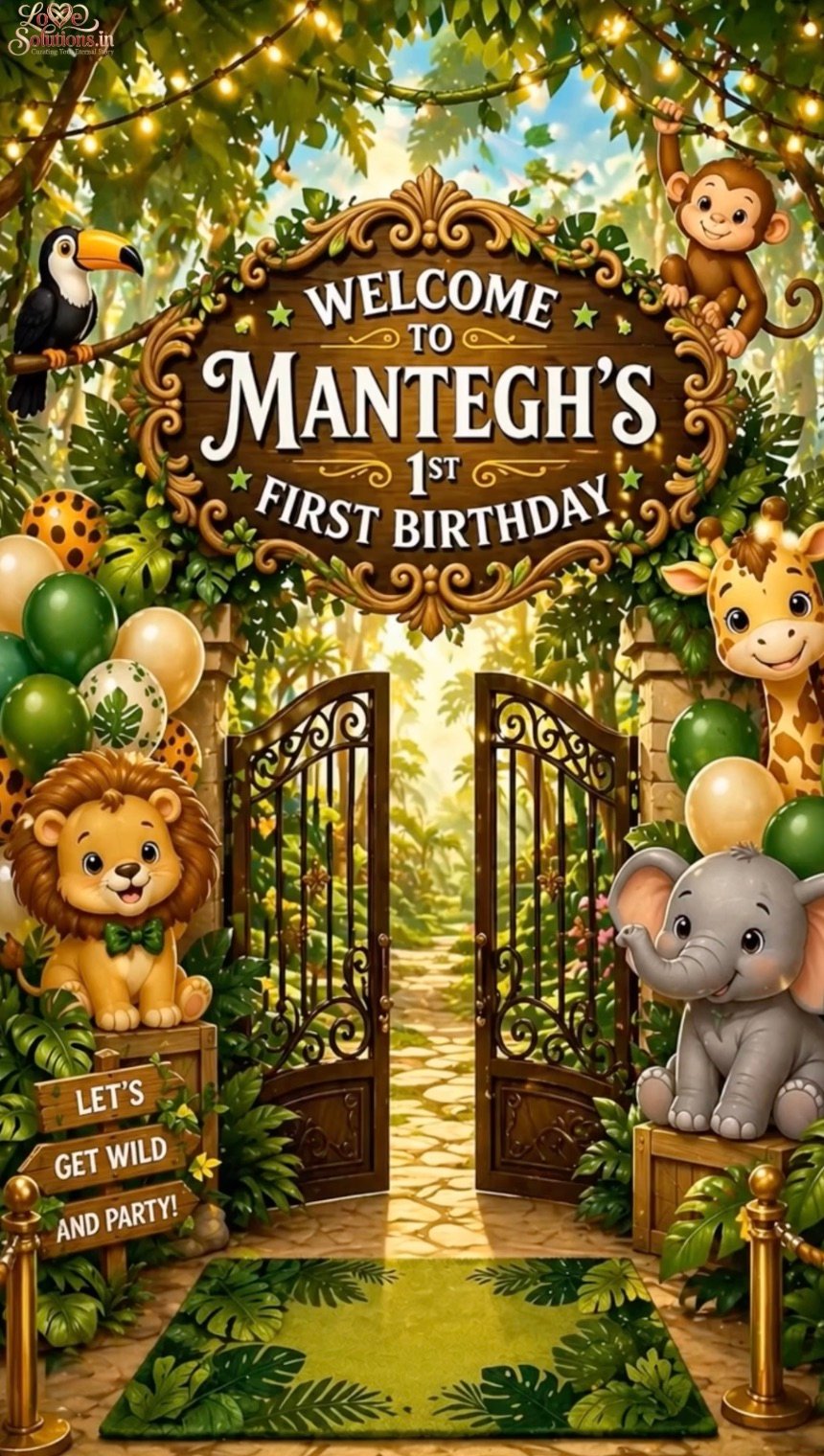
Choose photos that suit the invitation
Select a small set of clear photographs rather than sending an entire family album. A portrait can introduce the birthday child; another image might support the chosen theme or show a family moment you are comfortable sharing.
Use the best available original files. A screenshot or repeatedly forwarded image may look soft when enlarged. Check the proposed crop before approval so a face, head or important part of the picture is not accidentally cut off.
A photo is optional. An illustrated invitation can still feel personal through its wording, colours and theme. You do not need to add a child's photograph simply because the format supports images.
Decide what the audio should do
Music can give the opening a playful or gentle mood. Choose an audio option that suits the celebration and that you have permission to use for the intended sharing. Ask the designer to confirm the supplied or included audio before the edit is final.
If there is a spoken invitation, listen carefully to the child's name and every party detail. Keep the music quiet enough that the voice can be understood. A favourite song may be meaningful to the family, but it should not make guests miss the date or reply instructions.
Make the invitation work without sound
Show the party date, start time, venue and response instructions as text. Hold each information scene long enough to read on a phone. Guests may open WhatsApp while travelling or in a quiet place, so music or narration should not carry the only copy of an essential detail.
Keep photographs and decorative motion from competing with the text. Put the venue and reply information on a clear closing screen, and repeat those details in the message that accompanies the video.
Review sharing and the final file
Before sending photos, agree with the people responsible for the invitation which images may appear and where the finished video will be shared. Check for other people in the background and remove details you do not want included. Keep private family information out of the public invitation.
Watch the exported file after sending it to a test phone. Review it once muted and once with sound. Check photo crops, text, audio balance and the final frame. Confirm that you are sharing the approved version rather than an earlier draft.
Frequently asked questions
Do we need to include a child's photo?
No. You can choose illustrations and personalised wording instead. Include photographs only when the family wants them in the finished invitation.
Can we choose the music for the video?
You can share your preferred mood or proposed track with the designer. Confirm that the audio can be used for the intended sharing and whether it fits the agreed project options.
What should guests be able to understand with the sound off?
They should be able to identify the birthday celebration, date, time, venue and response method from the text. Repeat essential information in the accompanying WhatsApp message.
Related birthday guides
Planning a birthday party?
Explore birthday invitation websites or share your birthday details. Confirm the chosen format, reply method and any RSVP features before ordering.