You have picked the music and found a beautiful animation. Then someone asks, “Where will the venue go?” Suddenly the last frame contains two family names, four functions, a postcode and an RSVP number in tiny type.
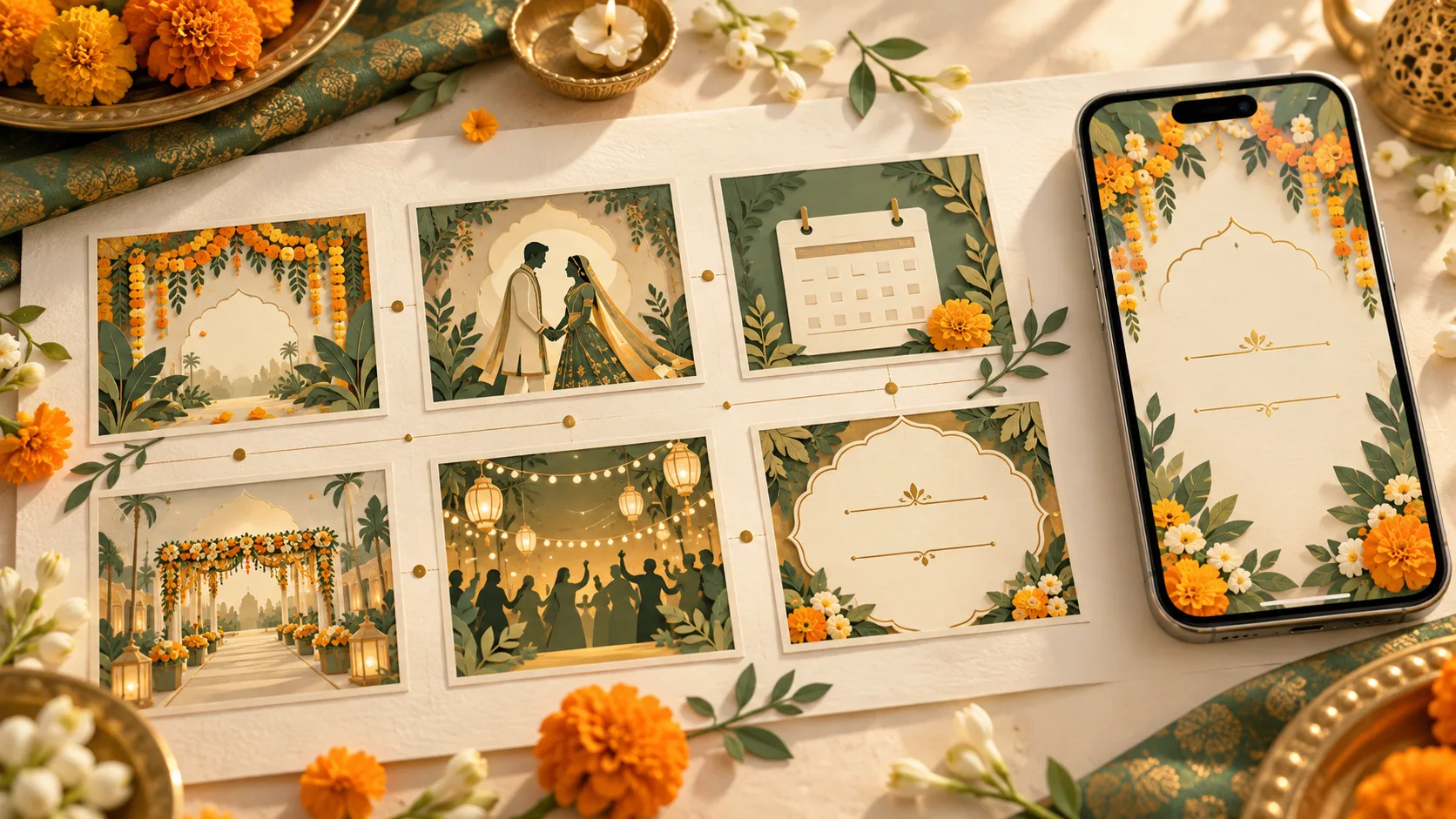
A useful wedding invitation video script solves that problem before animation starts. For a 30-second invite, give each scene one job: welcome the guest, introduce the couple, show the date and time, identify the venue, add a warm invitation, then explain how to reply.
Below is a complete six-scene storyboard you can adapt, plus a different structure for a four-function Indian wedding. The timings are a creative starting point, not a platform limit or a rule every wedding must follow. If your details need more time, make a longer video.
First, decide what this video needs to do
Choose the closest description before writing a line:
- We are announcing a date, but details are not final. Make a save-the-date. Include the couple, date and city, and say that the formal invitation will follow.
- We are inviting everyone to one ceremony or reception. Use the 30-second script below. Keep the confirmed time and venue in the video.
- We have several functions or different guest groups. Use the four-function version later in this guide, with a detailed schedule alongside it.
A cinematic opening cannot explain who is invited to which event. Settle that first. Where guest lists differ, prepare the appropriate invitation version for each group.
A copyable 30-second wedding invitation video script
All names, dates and places in this example are fictional. Replace every detail before sharing. The example is for one wedding ceremony, with arrival and ceremony times stated separately.
Scene 1: Welcome, 0–4 seconds
On-screen wording: “Together with our families”
Visual direction: A floral arch or simple invitation border appears gently. Leave the centre clear for the words.
Why it is here: This gives the invitation a warm opening without using half the video on an introduction. If family names must appear, give them their own readable scene and extend the runtime.
Scene 2: Introduce the couple, 4–9 seconds
On-screen wording: “Aanya & Kabir” followed by “Invite you to celebrate their wedding”
Visual direction: Use an approved couple photograph, illustration or monogram. Keep the names still while the background moves subtly.
Check: Read both names letter by letter. Confirm the order, spelling and any surnames with the couple before adding effects.
Scene 3: Date and time, 9–15 seconds
On-screen wording: “14 February 2027” followed by “Please arrive at 6:30 pm” and “Ceremony at 7:00 pm”
Visual direction: A calm, uncluttered card. Reveal the three lines together rather than making guests wait for each word.
Check: Write the month in words. Distinguish arrival time from ceremony time when both matter. Add the time zone for a livestream with guests abroad.
Scene 4: Venue, 15–21 seconds
On-screen wording: “The Marigold Courtyard” followed by “Jaipur” and “Full address and map in the message”
Visual direction: A venue-inspired arch or a simple location motif, with strong contrast behind the text.
Check: The full address must actually be available in the accompanying message or linked page. A decorative illustration of a palace should not be mistaken for a photograph of the real venue.
Scene 5: The personal invitation, 21–25 seconds
On-screen wording: “We would love to celebrate with you”
Visual direction: Return to the couple or the opening floral motif. A gentle change in the music can support this moment without adding more information.
Make it yours: Replace the line with a short phrase you would genuinely say. Keep jokes and inside references for guests who will understand them.
Scene 6: The next step, 25–30 seconds
On-screen wording: “Please RSVP by 25 January” followed by “Open the link in our message”
Visual direction: Hold the final card steady. Use the same colours and type style as the wedding page guests will open next.
Check: A link drawn inside an MP4 is not a clickable button. Send the actual website or RSVP link in the chat message. If you prefer phone replies, replace the second line with an approved contact name and number.
Send a useful WhatsApp message with the video
The message carries details that guests should be able to copy, open or search later. Replace the bracketed fields in this template; do not send them as written.
Hi [guest name], we would love you to join us for Aanya and Kabir's wedding on 14 February 2027 in Jaipur. Please arrive at 6:30 pm for the 7:00 pm ceremony. The invitation video is attached. Full venue details, the map and RSVP are here: [your wedding website link]. Please let us know by 25 January whether you can join us. With love, [sender names]
If there is no website, paste the full venue address, verified map link and reply instructions directly into the message. Give guests a readable text version even when the video includes voiceover.
Have haldi, mehndi, wedding and reception? Use this version
Four functions need more than four attractive labels. Guests also need dates, timings, venues and clarity about which events they are invited to.
For a brief overview sent to guests invited to all four functions, try this 30-second allocation:
- 0–5 seconds: Couple names and a welcome
- 5–9 seconds: Haldi, date and time
- 9–13 seconds: Mehndi, date and time
- 13–18 seconds: Wedding, date and time
- 18–23 seconds: Reception, date and time
- 23–30 seconds: “Your full schedule, venues and RSVP are in the link sent with this video”
This version assumes a complete companion schedule. Four seconds may be too little for a long event name, bilingual text or extra venue details. Test it on a phone; lengthen the video or split it into separate invitations if the text feels rushed.
Try this quick decision: Could someone attend the wrong function because they watched only the video? If yes, make the invitation group explicit and review who receives each version. Do not rely on a general “all details online” line to fix a confusing guest list.
A wedding website can give the longer schedule a clear home. Decide which details belong on that page and confirm the features you need before choosing a design.
Using AI visuals? Keep the approved wording separate
If you arrived here after exploring AI prompts for wedding invitation videos, use this storyboard to decide what each generated scene should show.
One practical approach is to generate the background first, then add names, dates and venue details as editable text in your video editor. That makes corrections easier without rebuilding the entire visual.
For Scene 1, a starting prompt could be:
Vertical wedding invitation background with an elegant marigold floral arch, warm ivory centre and muted sage details. Soft daylight and gentle petal movement. Keep the middle uncluttered for text added later. No lettering, dates, logos or watermarks.
For Scene 4, adapt the visual while retaining the palette:
A stylised courtyard entrance framed by restrained marigold flowers, warm ivory and sage palette, soft evening light, slow camera movement. Leave a calm central area for venue wording added later. No lettering, logos or identifiable real venue.
These are creative prompts, not guaranteed outputs. Check every result before using it. Use couple images only with permission, and have the family review cultural or religious details rather than assuming a generated scene is accurate.
Make the script readable before making it elaborate
Use the phone-sized preview throughout editing. For essential information, a plain font and a quiet background are easier to check than thin gold lettering over moving petals.
The W3C contrast guidance explains why sufficient contrast between text and its background matters, including for text rendered into images. Apply that principle to your invitation: keep names, dates and directions clearly separated from decoration.
Then run three simple tests:
- The muted test: Can a guest understand the invitation without hearing the music or voiceover?
- The one-watch test: Can someone unfamiliar with the plans tell you the date, arrival time, venue and reply method after one viewing?
- The received-file test: Send a sample through your intended sharing channel and check that received copy on a phone, not only the original in your editor.
If a scene fails, remove secondary wording, simplify the background or give it more time. Avoid shrinking every line to preserve an arbitrary runtime. For export choices, see the guide to video format and file size for wedding invitations.
Your final storyboard approval checklist
Before animation is finalised, ask the couple and the relevant family reviewers to confirm:
- Names, spellings and family wording are approved
- Each event has the correct date, arrival time and venue
- Each guest group receives the appropriate functions
- Every bracketed placeholder has been replaced
- The message includes a working map or wedding-page link
- The RSVP deadline and reply method agree across the video and message
- All important information is available as readable text
- Photos, artwork and music are cleared for the intended use
Keep a dated copy of the approved wording. If a time or venue changes, update every affected version and send guests a clear correction.
Want this storyboard turned into a finished invitation?
Browse the Love Solutions wedding video invitation collection to choose a visual direction. Bring the approved script, event details and any couple photos you want to use. If your celebration needs a longer schedule, discuss a coordinated website alongside the video.
Confirm the scope, revision stages and final deliverables with the team before production. A good brief makes it easier to create an invitation that feels personal and still answers your guests' practical questions.
Frequently asked questions
Is 30 seconds enough for a wedding invitation video?
It can be enough for one event with short wording. Multiple venues, long family introductions or more than one language may need extra time. Treat 30 seconds as a starting structure and prioritise readability.
Should I put every wedding function in one video?
Only if the intended guests are invited to those functions and the information remains readable. Otherwise, create group-specific versions and provide the correct detailed schedule with each one.
Does a wedding invitation video need a voiceover?
No. Music with clear on-screen wording can work well. If you add a voiceover, keep the essential details visible and include a text invitation so guests do not have to rely on sound.
Can I use this script with an AI video generator or a designer?
Yes. Use the scene timings and visual directions as the brief, then adapt them to your tool or designer's workflow. Keep the final names, dates and venue wording under human review.